|
Metafiles |
|
Metafiles |
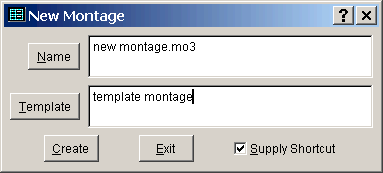
Montage metafiles, also referred to simply as montages (lower case), represent saved configurations of previous invocations of Montage. Each montage actually is stored as a group of three files having the same name, suffixed with the extensions MO3, FPT, and CDX. These constituent files are generally treated as a unit, collectively referred to as a single metafile, which is referenced primarily by its MO3 filename.
Tip: Always remember to work with all three component files (MO3, FPT, and CDX) when copying, deleting, moving, or renaming a montage.
Only the Montage executable program and some essentially static support files need to reside in the Montage program directory. Montage's dynamic data files (not including icons) are stored separately in metafiles, and you can keep any number of such modular montages under any filing system organization you wish. Using Windows Explorer, you can open a montage simply by double-clicking on its primary (MO3) file.
Double-clicking on a Windows link whose target is the program, MONTAGE3.EXE, as opposed to a specific metafile, opens a default metafile named MONTAGE.MO3 in the specified initial directory. If no such montage already exists, a new, empty one is created.
Each version of Montage (the program) corresponds to the version of metafiles (montages) that it creates. Montage is designed to assure upward compatibility, i.e. an old montage should always be usable with a newer version of the program. You can can open a montage with the version of Montage that created it, or you can update the program to a more recent version, and use this with your old montages. The reverse, however, is not necessarily true, i.e. backward compatibility is limited: you may not be able to use any older version of the program, MONTAGE3.EXE, to open a montage created or modified by a newer version. In general, there will be a limited range of previous program versions that are still backward-compatible with newer metafiles, but this varies from version to version. (The About Montage dialog displays information about both the program version and the metafile version, as well as the range of backward compatibility for the current version.)
When you attempt to open an old montage with a newer version of Montage, you may be presented with a confirmation dialog asking for permission to convert the montage to the more recent version, if the metafile's internal format has been significantly revised. Unless you allow this automatic metafile conversion to be performed, you will not be able to open the old metafile with the current version of Montage. If you decline the conversion, the original metafile remains unchanged, so you can still open it with the earlier program version that created it. All aspects of metafile versioning, validation, and conversion are handled automatically, as needed. (For additional details, also see the metafiles section of the Montage Knowledge Base.)
Openings of montages are exclusive, meaning that a given metafile can have at most one opening at a time. This makes sense, because a montage represents the precise state of an instance of a Montage Desktop window and its associated applications. By definition, two different views can't correspond to a single montage. Another example of an exclusive document application is Microsoft Word, which also prevents you from opening the same document in two separate windows. On the other hand, Windows Notepad (NOTEPAD.EXE) does allow you to open multiple instances of the same text file, leaving the possibility of confusion, inconsistency, or loss of data if the document is edited.
The typical behavior when attempting to launch a second opening of an exclusive application or document is simply to activate the window of the previous opening, rather than creating a second instance. In addition to supporting this sort of pass-off, for certain specific applications (e.g. for montages and Word documents) Montage supports an enhancement called auto-detection. This feature makes it easy to tell from its highlighting when a Montage Shortcut points to a montage that has already been opened via another Shortcut, or by some other means (e.g. through Explorer).
In the world of Windows applications, the first criterion of portability is the ability of programs to run under any version, from Windows 95 on up to the latest version. While many developers (and certainly Microsoft) have narrowed this standard of compatibility, Montage still adheres to it. Beyond that, Montage strives to support data portability, because program compatibility is not enough.
A montage may or may not be constructed so as to be portable, and this is a matter of degree. The most portable case (at present) would be a montage that can be copied to any location on another Windows PC, regardless of the version of Windows, which applications are installed, or what filing system organization may exist on that machine. The standard sample montages that we provide are examples of highly portable metafiles, so these should be usable on just about any Windows PC (any exceptions would be explicitly indicated).
Of course montages are in some sense portable, because they are stored as separate files, apart from the Windows Registry. This aspect of modularity is a prerequisite for portability, but not sufficient to assure that a montage can be used on a different machine. Montage supports a number of additional features among its global options and Shortcut Properties aimed at enhancing portability:
You don't have to go out of your way to make your montages portable if they are only intended for use on a single machine, but you may find these features helpful if you work on multiple machines, or you switch between different display resolutions and Windows desktop layouts, or you wish to distribute a montage to someone else. If you're not sure whether to bother, that's OK, because you can adjust a montage to be more portable when the time comes that it matters. From our perspective, of course, providing downloadable samples demands portability.
Tip: Often it's a good idea to turn on the Advanced, Relative Paths option from the outset, as this may save you time later on if you decide to move the montage to a different location. In any case, you can intermix relative and absolute pathnames.
|
Compressed montagesA complete Montage metafile, including all three of its primary component files (MO3, FPT, and CDX) can be stored more compactly as a single, compressed ZIP file, also referred to as a compressed montage. The most convenient way to create a compressed montage is with the Save to Zip command, but you can also use any of a variety of free or commercial ZIP creation tools. Besides the three required montage component files, a compressed montage may include any number of additional files, such as documents, images, URL links, and other files to which the montage refers, and these files may be organized into corresponding sub-directories within the ZIP file. In this way compressed montages can serve as a convenient vehicle for backing up or distributing self-contained modules of related information. Using generic ZIP file management tools, you can manually extract any or all of the files in a compressed montage to restore the montage and its associated files from a backup. If the compressed montage was properly created with portability in mind, it should be sufficient to extract the entire ZIP file contents to obtain a usable copy of the original montage, even if the destination is a different directory on a different computer. Aside from such manual ZIP file extraction procedures, Montage supports an
automated mechanism for extracting the contents of a compressed montage, in the
context of dynamic fetching.
This allows entire montages to be distributed efficiently across the Internet,
on an as-needed basis. In particular, this is how the
Montage samples are distributed. |
|
|
Next: Desktop Windows |
||
|
|
||
|
Montage Help page, last edited:
12/31/10 16:20
|

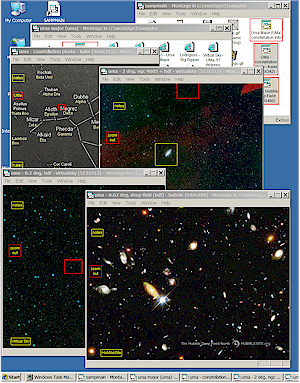 Sample montages